How to use Selnook: a three-minute walkthrough
Selnook answers one question — what does a single order really earn? — for any channel, with dedicated pages for Amazon, eBay, Etsy and imported goods. Here is every part of the screen and what to do with it.
Key numbers
- 5 calculatorsProfit margin (any channel), Amazon FBA, Etsy fees, eBay fees and landed cost for imported goods.
- 37 + 11 + 64built-in fee table rows: Amazon referral categories, eBay final value fee categories and Etsy Payments locations, checked against the official pages on 28 October 2026.
- 0 sign-upsEverything is calculated in your browser and your entries stay there. An account is optional.
- 3 answers per orderNet profit and margin, break-even price, and the price for your target margin — plus the most you can pay for the product.
- 1. Pick a calculator
- 2. Enter one order
- 3. Use the fee table
- 4. Set a target
- 5. Check other prices
- 6. Compare two versions
1. Pick the calculator for your channel
| Calculator | Use it for | What it fills in for you |
|---|---|---|
| Profit margin | Any marketplace, your own shop, wholesale | Nothing — you type the fee rates, so it works for any channel |
| Amazon FBA | Amazon.com, FBA or merchant-fulfilled | Referral fee by category (37 categories), including the whole-price bands |
| eBay fees | eBay.com, sellers without a Store | Final value fee by category (11 tables), per-order fee, sales tax in the fee base |
| Etsy fees | Etsy, any seller country | Processing and regulatory fees for 64 Etsy Payments locations |
| Landed cost | Goods bought abroad | Currency conversion, freight and estimated duty before the selling fees |
2. Enter one order and read the result card
Every calculator opens with an example order. Replace the numbers with one real order: what the buyer pays, what the product and postage cost you, and the fees. Results update as you type.
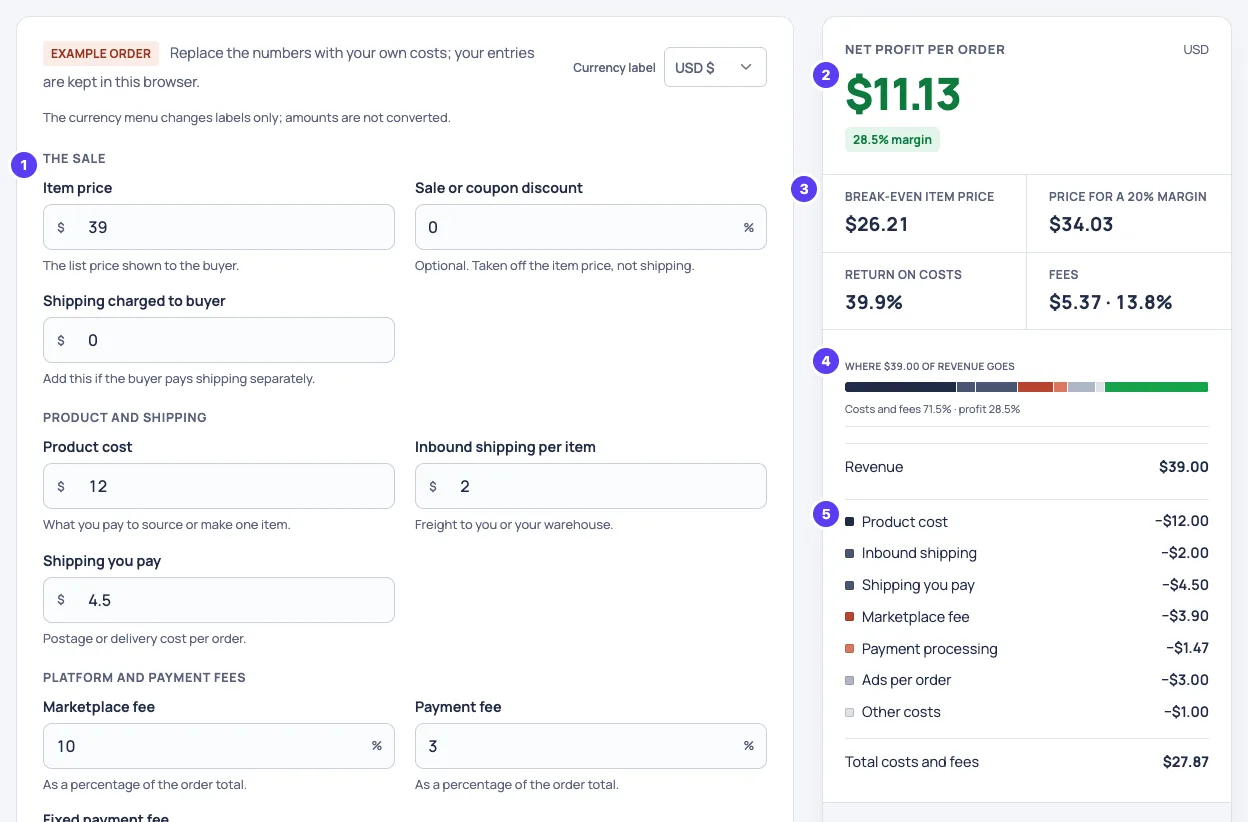
Two details that trip people up: margin is profit divided by revenue (not by cost), and the currency menu only changes the labels — it does not convert amounts.
3. Let the fee table fill in the rates
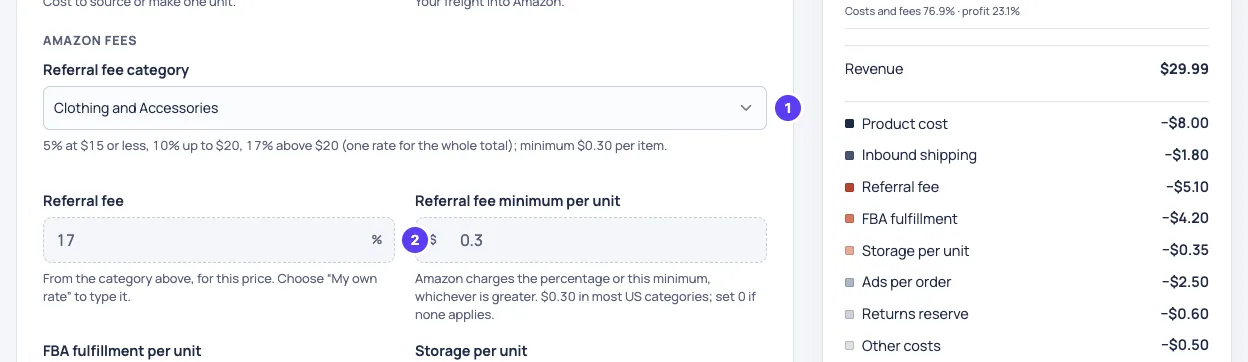
On the Amazon, eBay and Etsy pages, choose your category or country first. The calculator then applies the official rates, including the rules that are easy to get wrong by hand: Amazon’s whole-price bands, eBay’s sneaker and handbag thresholds, Etsy’s rate by bank country.
4. Set a target margin
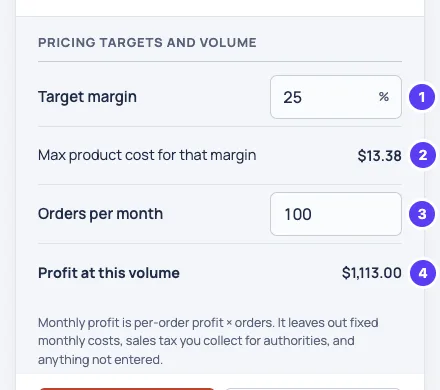
Under Pricing targets and volume, type the margin you need. The result card then shows the price that reaches it, and this panel shows the most you can pay for the product at your current price.
5. Check what other prices would earn
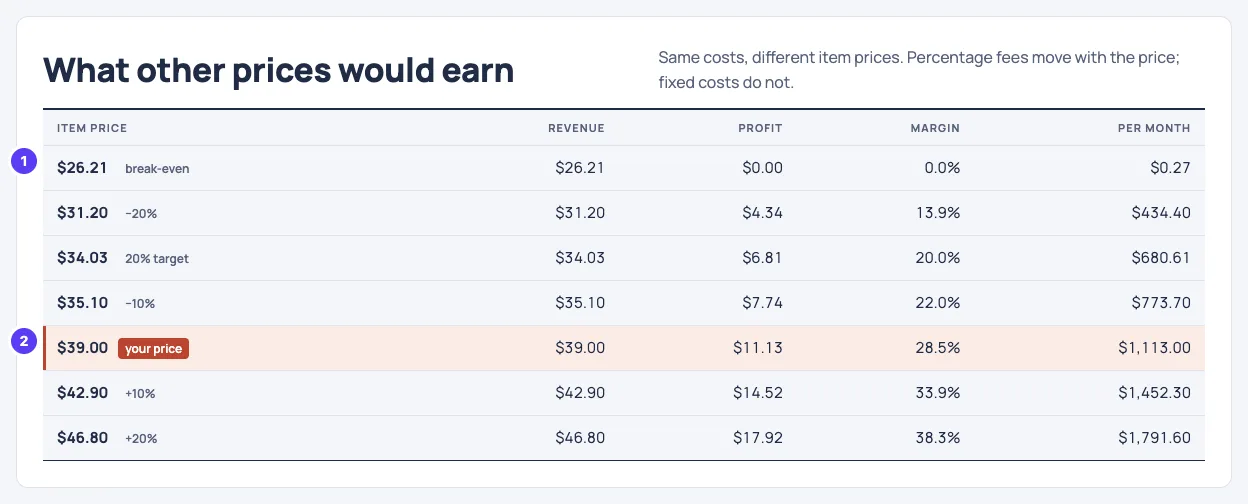
The price ladder recalculates the same order at break-even, your target, and 10% and 20% either side of your price. Percentage fees move with the price; fixed costs do not, which is why profit does not move in a straight line.
6. Compare two versions
Before you change a price or accept a supplier quote, keep the current numbers as A, make the change, and keep that as B. The table shows each figure side by side and the difference.
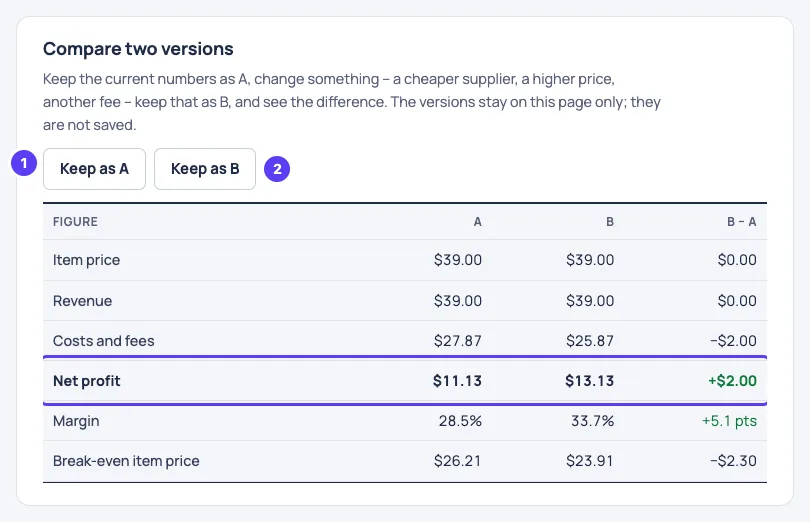
The same comparison is how the numbers in our guides were checked: $20.00 vs $20.99 for Amazon clothing, $149.99 vs $150 for eBay sneakers, an Etsy order with and without Offsite Ads.
Saving, printing and privacy
- Your entries stay in this browser and are there next time you open the page. Nothing you type is uploaded; an account is optional and does not send calculator entries.
- Copy summary puts the result on your clipboard for a spreadsheet or a message; Print prints the inputs, results and price ladder without the explanations around them.
- Reset example brings back the starting numbers.
Start with the profit margin calculator, or go straight to Amazon FBA, Etsy, eBay or landed cost.